
Instagram Blocking: When You Need to Block Someone
Instagram blocking can come in handy when unwanted
messages or comments from someone on social media
start stressing you out.
Blocking an Instagram account
helps protect your personal information
from that person.
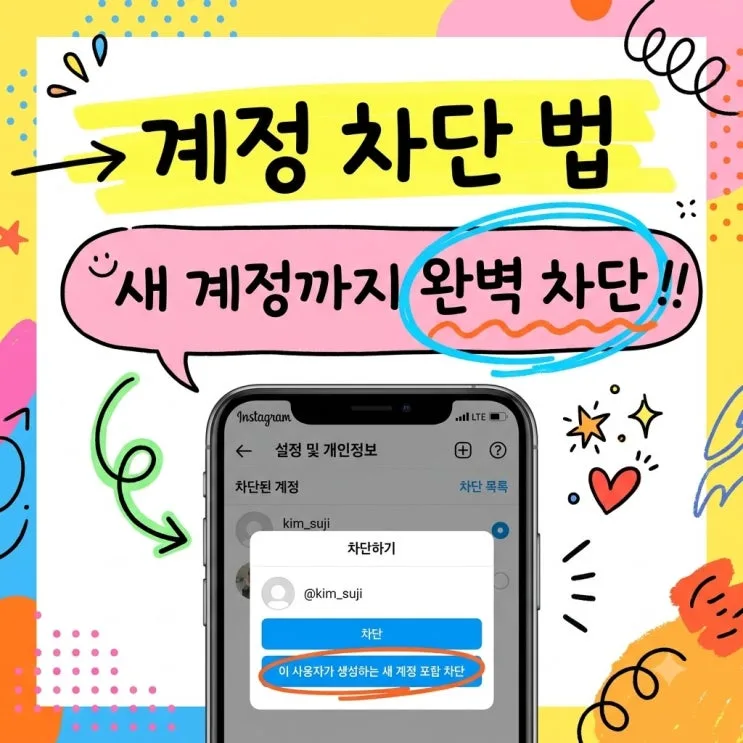
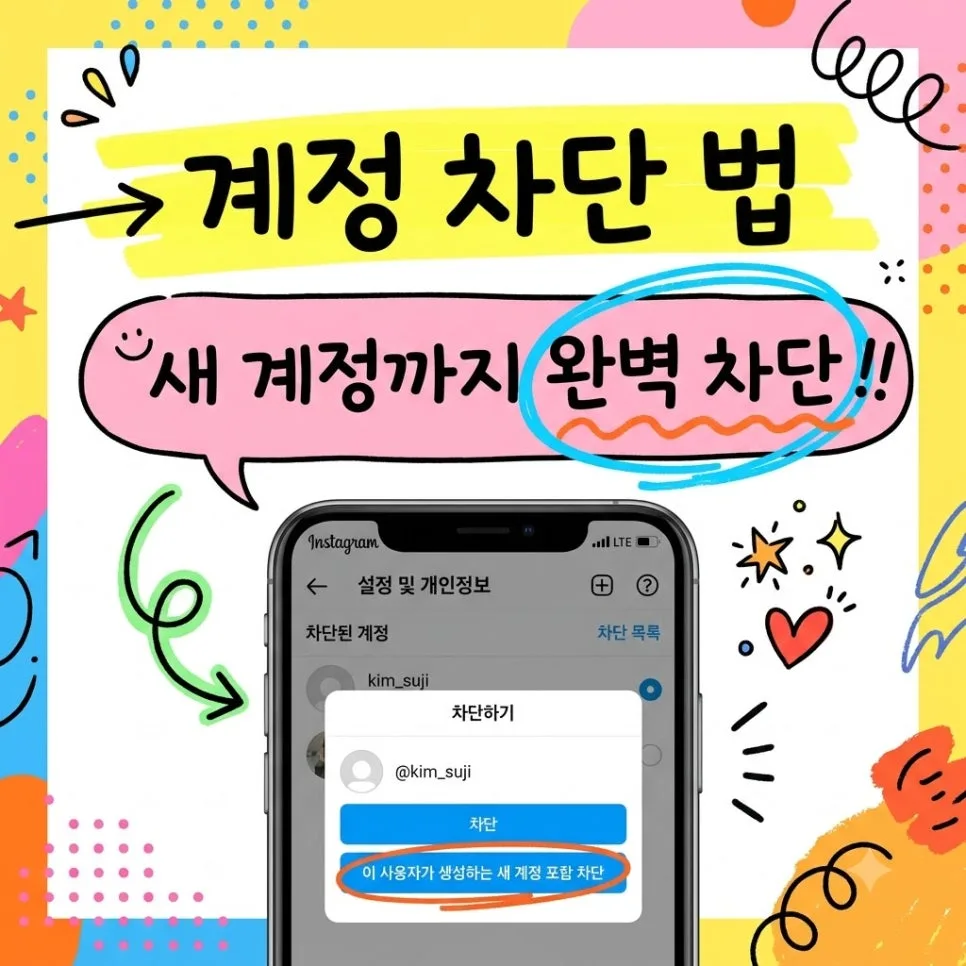
Here’s how to block an account and cover new accounts, too,
with a few useful settingsthat help you
keep unwanted contact at bay.
Instagram Block Options at a Glance
Instagram lets you block a single account or extend the block
to other accounts, so you can choose
what works for your situation. Here’s a quick comparison.
|
Block Option |
Accounts Covered |
When to Use It |
|
Block This Account Only |
One specific account |
A temporary boundary |
|
Block New Accounts, Too |
Existing and new accounts |
Preventing repeated unwanted contact |
The option to block new accounts uses signals such as device information
to identify accounts that may belong to the same person,
giving you an extra layer of protection.
How to Set Up Instagram Blocking
Getting started is simple.
First, open the profile of the person
you want to block.
Tap the three-dot iconin the upper-right corner
to open the menu.
Then select Block.
For extra protection, choose the option to block other accounts they have or may create when prompted.
That way, even if they create another username,
it becomes harder for them to find you.
What Changes After You Block Someone on Instagram?
Once you block someone, that account can no longer see your
posts, Stories, or Reels
on Instagram.
You won’t see their activity either,
and direct messaging between your accounts stops.
If they search for you, your profile
won’t appear in their search results,
helping keep your activity private.
How to Unblock Someone You Blocked by Mistake
Accidentally blocked someone? You can
unblock them through your settings.
Open Settings and privacy from your profile,
then look for the blocked accounts listto see
which accounts you’ve blocked.
Simply tap Unblock next to the account
to remove the block immediately,
so you can get back in touch.
Instagram Blocking FAQ
Here are answers to the questions people ask most often.
Consider this your quick reference for blocking accounts.
Still have a question? Leave it in the comments,
and I’ll do my best to help with a detailed answer.
Frequently Asked Questions
Q. Does Instagram notify someone when I block them?
No. Blocking someone does not send them
a separate notification.
They might figure it out, though,
if they search for your profile and can’t find it.
Q. Will Blocking New Accounts Catch Every Account They Create?
Instagram uses signals such as device information
to estimate whether accounts belong to the same person.
It won’t necessarily catch 100% of new accounts,
so keep an eye out for further unwanted contact.
Q. What Happens to My DM History After I Block Someone?
Your existing conversation history stays in your inbox,
but new direct messages won’t go through.
Leaving or removing the conversation can make it disappear from your inbox,
so save any information you need beforehand.
References and Links
Check Out Today’s Recommendation
#Instagram #InstagramBlocking #SocialMediaSecurity #InstagramTips #AccountManagement #Privacy